
Git and Github: A Beginner's Guide
8 min read
This write-up is the first of a two-part series that explores Version Control in software development. It highlights basic version control concepts, and how to implement them with Git and Github. Tailored for beginners.
1. Introduction
Version Control Explained
Version Control can be defined as a system that records changes to files over time so you can track revisions, compare differences, and revert to previous versions if needed.
If you've worked on a project with different versions, how you track and manage all those versions is what is known as Version Control.
It allows multiple people (or even just you) to collaborate on a project without overwriting each other’s work by maintaining a history of changes and enabling branching and merging.
Version Control allows one :
- Track changes to files over time
- Collaborate effectively in teams
- Restore earlier versions of files
- Manage different versions of a project (branches)
2. Understanding Git
What is Git?
Git is widely recognised as a Distributed Version Control System (DVCS).
- Version Control means helping you track and manage changes to your code over time.
- Distributed means every developer’s computer has a complete copy of the codebase, including it’s entire history—not just the latest version.
So in simple terms, Git helps you track and manage changes to your codebase while also distributing the copy of the codebase and it’s history to every developer working on the project.
This approach makes collaboration faster, more reliable, and less dependent on a central server.
There are other version control systems (e.g SVN), but Git is the industry standard, and the one with by far more market share. This makes it essential for aevery developer to know how to use, and is especially important when looking for jobs.
How Git differs from other Version Control Systems
- Distributed vs Centralized:
- Git: Every developer has a full copy of the repository, including history.
- SVN: Relies on a central server; local copies only have the latest state.
- Performance:
- Git operations (commits, branching, merging) are local and fast.
- SVN requires server interaction for most operations.
- Flexibility:
- Git supports easy branching and merging for parallel development.
- SVN branching and merging are slower and more complex.
- Offline Work:
- Git allows full history and commits offline.
- SVN needs a network connection for most tasks.
3. Benefits and Uses of Git
Git is more than just a version control tool, it’s designed for speed, reliability, and collaboration. Below are some of its key benefits and practical uses:
1. Simplified Collaboration:
- Git allows multiple people can work on a project seamlessly.
2. Full Project History Management:
- Git creates a permanent record of changes, along with who made them and why, allowing you to easily navigate through project history.
3. Offline Work Capability:
- Because Git is distributed, you can commit, branch, and browse history without internet access. You can then sync changes later by pushing to or pulling from a remote repository.
4. Risk Free Experimentation:
- Git caters for experimentation with branches. You can test new features or ideas on branches without breaking the codebase. If things go wrong you can easily delete the branch.
5. Speed and Efficiency
6. Allows Traceability & Accountability
4. Getting Started With Git
To start using Git, you need to install it and configure your identity.
Step 1: Install Git
-
Open your browser and go to https://git-scm.com.
-
Download the version for your operating system and install it.
-
Tip: On MacOS, homebrew is more commonly used to install git using the command
brew install gitin your terminal.
Step 2: Verify Installation
Open your terminal (or Git Bash on Windows) and run:
git --version
You should see a result with the verion number, indicating git is installed correctly. e.g:
git --version
git version 2.45.2
Step 3: Configure Your Identity
Git needs your name and email to record in each commit. This allows collaborators to know who made a commit.
Run these commands:
git config --global user.name "Your Name"
git config --global user.email "your.email@example.com"
✅ These details will appear in your commits.
Step 4: Confirm Your Settings
git config --list
This command returns a list of all configuration settings, including settings like default code editor, and default branch. You should see your username and email listed in their respected fields, confirming that they're configured.
✅ Now Git is ready to use on your system.
5. Repositories
A repository (or repo) is the core concept in Git. It’s where your project and its entire history of changes are stored. Think of it as a database for your code and its evolution over time.
Types of Repositories
- Local Repository: A repository(repo) that exists locally on your computer. This is where you make commits, create branches, and manage your project.
- Remote Repository: A repo hosted on a server (e.g., GitHub, GitLab, Bitbucket). It allows you to share your code with others and collaborate.
Typically, developers work locally and then push changes to a remote repository for collaboration.
Creating a Repository
There are two main ways to create a Git repository:
Option 1. Initialize a Repository in an Existing Project
If you have an existing folder, and you want to initialize a git repo with the folder, use the following command in your folder's directory:
git init
This creates a hidden .git folder which will be added to your root directory and contains all the metadata Git needs. (More on this in a future article)
Option 2. Clone an Existing Repository
If the project exists remotely (e.g., on GitHub):
git clone <repository-url>
This creates a copy of the remote repository on your machine, including all its history.
✅ With any of the above options, your folder is now being tracked by Git for version control, and you can begin making changes to your files.
6. Working With Changes
When you initially create and modify files in your repository, these files aren't tracked by git. Meaning they can't be accessed to modify or revert back to yet.
These files that are not being tracked by git are known as Untracked files
-
An untracked file is any file in your project folder that Git is not yet tracking.
-
A tracked file is any file in your project folder that is currently being tracked by git.
To track an untracked file you need to add it to the staging area
Staging Area
The staging area is like a waiting room where you collect changes before committing them.
To add a file into the git's staging area:
git add <filename>
To add all files:
git add -A
git add --all
To add all files in the current directory and below:
git add .
✅ This way your file(s) are now being tracked by git.
To check all currently staged files. Run the command:
git status
This returns a list of all currently staged and unstaged files, along with the files ready for commit.
For example:
On branch master

No commits yet

Untracked files:
  (use "git add <file>..." to include in what will be committed)
        index.html
        style.css

nothing added to commit but untracked files present (use "git add" to track)
To unstage a file (Uncommon, but possible if you accidentally staged a file):
git restore --staged <filename>;
Git Commits
A commit is an essential part of working with Git.
It is a snapshot of your project’s files at a specific point in time.
After staging your changes with git add, git still doesn't have the current state of the repository stored for future reference.
git commit is the way save the repo state, allowing you to revisit that state at any time.
To commit your staged changes:
git commit -m "your message"
The message part is a commit message, which is a short description explaining what changes you made and why. It helps you (and others) understand the purpose of the commit when looking back at the project’s history.
Note
Writing a clear commit message is essential so you and other developers can understand what changed.
Good commit messages are usually:
- Concise (around 50 characters for the first line).
- Descriptive (e.g., "Fix login bug" rather than "update files").
- Sometimes followed by a longer explanation if the change is complex.
7. Navigating History
Git keeps track of every commit, and you can go back, look around, and even restore things if something goes wrong using some of these commands below.
Checking Status, Logs, and History
Before jumping back to previous commits, it helps to know where you currently are.
git status→ As explained in previous sections, tells you what’s changed in your working directory compared to your last commit.git log→ shows a timeline of every commit made in a repository, with details like author, date, and commit message.
Think of these as your map and compass for navigating Git’s timeline.
Switching Between Commits (checkout)
Sometimes you need to revisit an older version of your project.
The checkout command helps you do this by allowing you to view the state of a repository, at the time of a specific commit.
To go back to a previous commit using checkout:
git checkout <commit-hash>
Note
The commit hash of a previous commit can be gotten through the command
git log, briefly touched on earlier in the section.
✅With this, your working directory is in a state of the past.
⚠️ Important: If you checkout a commit directly, you’ll enter detached HEAD state, meaning you’re no longer on a branch. It’s safe to look around, but you shouldn't make changes there as those commits won’t belong to any branch unless you create one from there. (More on this will be touched on in a futeure post)
Undoing Changes Safely
Git provides you with several ways to undo a mistake based on the scenario
-
To unstage a file (but keep your edits):
git reset <file> -
To discard local changes (i.e revert a file or multiple files back to last commit):
git restore <file>git restore . // For all files in directory -
To undo a commit without losing work:
git reset --soft HEAD~1 -
To revert a commit (Undo a commit without rewriting history i.e New commit undoing changes of previous commit):
git revert <commit-hash>
This way, you can undo small mistakes, or even roll back big errors, without compromising your progress.
8. GitHub Essentials and Working with remote repositories
Git helps you manage your project locally, but collaboration really shines when you connect your work to a remote repository—that’s where GitHub comes in.
What is GitHub?
GitHub is a cloud-based hosting service for Git repositories. It provides:
- A place to store your code online.
- Tools for collaboration (issues, pull requests, discussions).
- Project management features (boards, milestones).
- Community sharing and open source contributions.
Creating a Remote Repository
A remote repository is a version of your project that is that is hosted on a server or network location, separate from your local working copy.(i.e repositories hosted on GitHub)
To create a remote repository:
1. Go to github.com, and create an account if you don't have one.
2. Sign in and click New repository (Find it in a dropdown maked with a "+" sign at the top right of your screen, or a green button labelled "New").
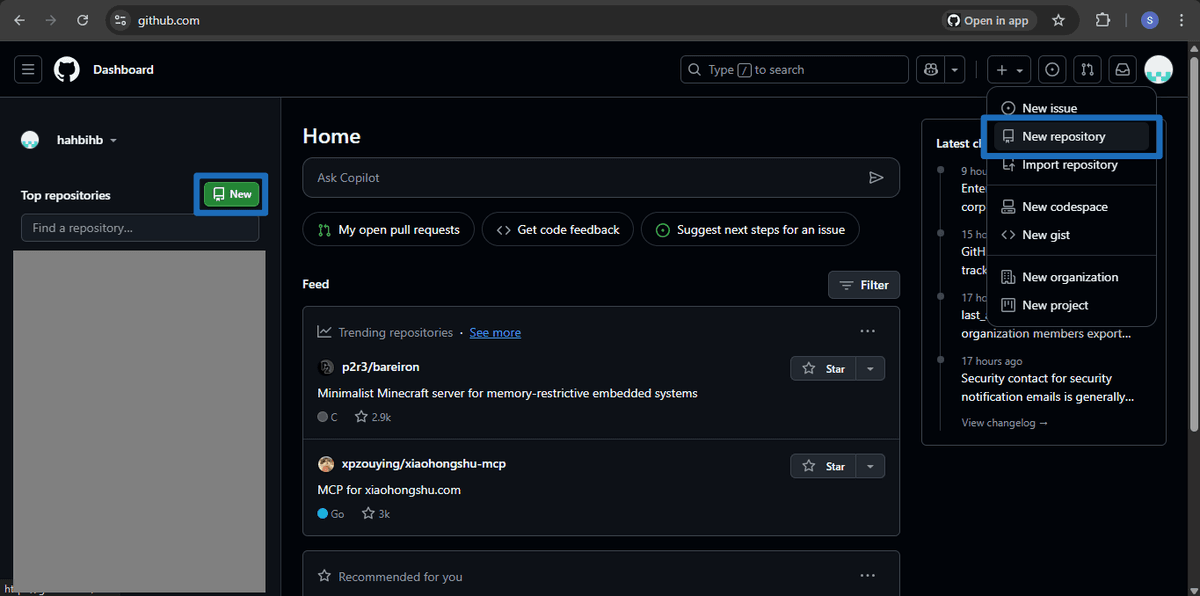
3. Name it, choose visibility (public: For everyone to be able to view, and clone or private: For only you), and create.
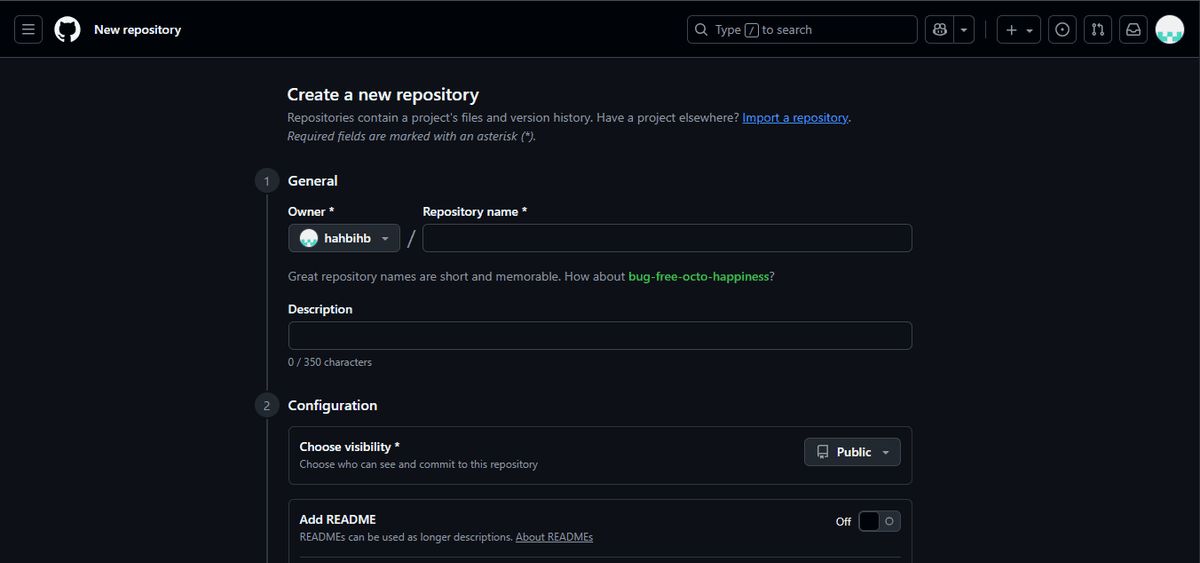
✅Now you have a blank repository hosted online.
Linking Local to Remote
The next step is to connect your local project to GitHub.
To do this, copy your github repo url and use it within the following set commands:
git remote add origin https://github.com/username/repo.git
git branch -M main
git push -u origin main
remote add origin→ This tells git where your remote repo lies, and links your local repo with it.branch -M main→ This renames your branch tomainif needed.push -u origin main→ This uploads your local history to GitHub.
Note
"-u" here sets an upstream relationship with your remote origin. It tells Git
“from now on, whenever I’m on main, git push and
git pull should use origin/main by default”.
🔹 Pushing Changes
After making changes, and commiting locally, you can push these changes to Github with:
git push
Now your teammates (and the world, if it’s public) can see your changes.
🔹 Pulling Changes
To pull latest changes from a GitHub to your local repository:
git pull
This fetches changes and merges them into your branch.
🔹 Cloning a Repository
To start from someone else’s GitHub project, use the person's repo url and run this command in your CLI:
git clone https://github.com/username/repo.git
This copies the entire repo and it's history to your local machine.
Note
You need to have write access to the repo to clone it, if not you fork the repo.
9. Branching and Merging
Branching is one of Git’s essential features. It lets you create parallel lines of development without disturbing your main project.
This allows you to create different versions of your project, and is essential when working on a team so you and your team can work independently on different parts of a codebase without causing conflicts.
We'll touch briefly on branching and merging here, and expand on these in future articles.
Branching Basics
To create a new branch:
git branch feature-login // Use a name that best describes your branch
To switch/checkout to a branch (so you can work on that branch):
git checkout feature-login
To create and checkout to a branch automatically(Commonly Used):
git checkout -b feature-login
Why Use Branches?
- Branches help you build new features without breaking
main. - It allows for smooth work in parallel with teammates.
- It keeps history clean by isolating work.
Merging Branches
Merging in git means to combine one branch to another. When you use the merge command in a branch, you're merging some other branch into that branch.
When your work is ready, you merge it back into main:
git checkout main
git merge feature-login
Deleting Branches
After merging, you can safely delete the branch:
git branch -d feature-login
The commits remain in history.
Merge Conflicts (Brief)
If two branches touched the same file differently, Git asks you to resolve it manually—a merge conflict. You edit the file, decide what stays, then mark it as resolved.
10. Git Workflow for Beginners
🔹 1. Create or Clone a Repository
- Start a new project with
git initor copy an existing one withgit clone.
🔹 2. Make Changes in Your Working Directory
- Edit files, write code, or add new features.
🔹 3. Stage the Changes
git add <file>
This tells Git what will be included in your next snapshot (commit).
🔹 4. Commit Your Work
git commit -m "Describe your changes"
🔹 5. Sync with Remote Repository (if using GitHub)
- Push your commits to share them:
git push origin main
- Pull changes from others:
git pull origin main
🔹 6. Use Branches for New Features
- Create a branch when you want to try something new:
git checkout -b feature-login
- Merge it back into
mainwhen it works.
11. Common Beginner Issues
Even with Git’s simple commands, beginners often run into confusing situations. Below are some common issues and safe ways to handle them:
1. “I added the wrong file!”
You staged something you didn’t mean to.
git restore --staged <file>
This removes it from the staging area but keeps it in your working directory.
2. “My commit message has a typo!”
You just committed but want to fix the message.
git commit --amend
This lets you change the last commit message (before pushing).
3. “I want to undo changes to a file.”
You made edits but don’t want them anymore.
git restore <file>
This discards changes and resets the file to the last committed version.
4. “I need to undo my last commit.”
If you haven’t pushed yet:
git reset --soft HEAD~1
This keeps your changes but removes the commit.
12. Next Steps
Congratulations!! You should now know the fundamentals of Git! You can track your changes, create commits, work with branches, and connect to a remote repository. That’s enough to confidently manage your own projects and start contributing to others. Future articles will cover extensive collaboration on GitHub, Advanced Git commands, and how Git works Behind the scenes.
Subscribe to our newsletter below to be notified when future articles get released.
Thank you for reading!!
Similar Posts to this:
Collaboration on GitHub
Learn how to effectively collaborate with others on GitHub, including best practices for pull requests, code reviews, and managing issues.